Friday, November 6, 2009

(FIX) DVD Drive Not Found in Windows 7

It troubles us a lot when we dont have access to our frequently used DVD drive. Here i am dealing with the problem of DVD drive missing or not showing up in windows 7. In some cases the dvd drive may not be seen in windows 7 even if you can find it in the BIOS and using the standard driver. There can be many reasons for this problem. Here is a simple fix or solution to it. You can try this when you dont see the DD drive in windows 7.

Type regedit in the windows 7 start menu. The windows 7 registryeditor will open up.
Now go to HKEY_LOCAL_MACHINE\SYSTEM\CurrentControlSet\Control\Class\.

Now in the right hand pane, delete both UpperFilters and LowerFilters (UpperFilters.bak and LowerFilters.bak entries can be ignored).

Now that would bring back your missing dvd drive in windows 7.

If that dont fix the problem, the next thing to do is to alter the drive letter of the DVD drive.

For this Type Disk Management in the windows 7 start menu and press enter. DVD Drive Not Found in Windows 7
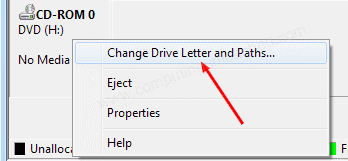
You will see the Disk Management windows opening up.

Now right click on your DVD drive in the bottom panel and select Change Drive Letter and Paths.

Change the drive letter of the DVD drive to some other (If it was H change it to I or some other).

Now Restart Your system. And Your DVD drive should be there. You may now change the DVD drive letter back to the previous one.

Labels: ,

Tuesday, October 27, 2009

How To RUN / Get XP in Windows 7 - Best Alternative to XP Mode in 7

Windows 7 has been released, fixing a lot of compatibility issues regarding both software and hardwares. So the users need not fear any compatibility issues with the softwares they install in windows 7. Many are still sticking with Windows XP thinking that their daily used programs might not work in windows 7. If you have a program that works only with XP, then dont worry when upgrading to windows 7, because windows 7 has Windows XP and Windows Vista compatibility modes for coping up with such cases. For more microsoft has released a XP mode which can make programs that failed in windows vista to work in windows 7. So there are obvious reasons for people to upgrade to windows 7. A good number of people who come to know about this upgrade to windows 7 thinking that with these new XP mode and other support they can use their windows xp programs in windows 7. But there are some downsides for this and there is a simple solution too.

Things to Know Before Going with the Windows Xp Mode Feature


  • Do you think microsoft is giving away the windows xp for free with windows 7? Absolutely No, because microsoft provides this additional feature for a price. The Windows Xp Mode is only available in Windows 7 Professional, Enterprise and Ultimate editions of windows XP.


  • The Windows Xp Mode in windows 7 only works with colors limited to 65,536. This was done just avoid programs from using too many system resources.


  • In order to use the windows Xp mode you need to have Microsoft Virtual PC installed in your system. This tool gives you an impression that you are running windows Xp inside windows 7, and for this purpose it uses a hardware-based visualization via the CPU. And further this option is only with the new processors (Intel Vitalization Technology or AMD V) and the corresponding option needs to br enables from the BIOS.


  • These are enough reasons for many, which will prevent then from upgrading to windows 7. So,

    How can we upgrade to windows 7 and use windows XP in it?


    There is a simple solution for this.

    You can Get windows XP inside Windows 7 in its full glory with the help of VirtualBox.

    How To Get or Run XP in Windows 7 or Best Alternative to XP Mode in 7
  • VirtualBox runs on other windows 7 versions too.

  • With VirtualBox you will get support for more than 65,536 colors. You can use the complete 1.6 million colors or the maximum you have.

  • VirtualBox doesn't need any Hardware Visualization Technology to Run Windows Xp in Windows 7 and you don't notice any loss of performance without having that.


  • Things to have before installing windows Xp inside Windows 7


    The only essential thing you need to have is the Windows XP installation Disc.

    so lets start,

    How To Get Windows XP inside Windows 7


    1. First you need to get VirtualBox to start with, so Download VirualBox and install it.

    2. Open VirtualBox and Click the "New" button and create a virtual PC

    3. How To Get or Run XP in Windows 7 or Best Alternative to XP Mode in 7
    4. In the Wizard select operating system as "Microsoft Windows" under version "Windows Xp".

    5. How To Get or Run XP in Windows 7 or Best Alternative to XP Mode in 7
    6. Give a name to the Virtual Machine you have created.

    7. Next you need to assign the amount of memory and hard disk space to be used for the virtual machine you have created. Set atleast 512 MB for the memory and some 10-30Gb for the hd space.

    8. How To Get or Run XP in Windows 7 or Best Alternative to XP Mode in 7
    9. Insert your Windows Xp setup CD in your DVD/Cd drive and type the corresponding drive letter of your drive in VirtualBox under "CD/DVD-Rom"
    10. (There is provision for specifying the Windows Xp iso file too).
    11. Now select "Devices > Install guest addons " and follow the instructions in virtual box.

    12. Now select "Machine > Wireless Mode".

    13. Now this will simulate the Windows Xp mode in Windows 7.

    Looking Forward to hear from you Friends.

    Labels: ,

    Wednesday, October 7, 2009

    Get/Pin Show Desktop Option in Windows 7 Taskbar

    The Windows 7 Taskbar is certainly one of the most striking feature to be seen on Windows 7. It has got a lot more features than any other taskbar we have seen. Live Thumbnail Preview, Aero Peek, Jumplists etc are some of the feature that the Windows 7 Taskbar or the Superbar has. There is no need of explanation what the "Show Desktop" Option does in windows. It has got that magical ability to minimize all the opened windows and take us directly to the desktop. But with windows 7 the show desktop option disappeared from the taskbar and it was moved to the extreme right of the desktop which was called the Aero Peek Feature (of course it was Show Desktop for non aero). Since windows users have got used to the show desktop icon in the taskbar, here is a way to get/pin the Show Desktop Icon in the Windows 7 Taskbar Easily.

    Show Desktop is a Free Tool that will help you to get the Show Desktop icon on the Windows 7 Taskbar.

    Pin Show Desktop Option in Windows 7 Taskbar

    You can use this tool on other windows versions too although it was made for windows 7. After installing the utility just drag the Show Desktop Option to the Windows 7 Taskbar.[via jkwebtalks ]

    Download Show Desktop


    Also Read : Get the AERO Peek Effect of Windows 7 in Vista and Xp

    Get the AERO Snap Feature of Windows 7 in Vista and Xp

    Labels: ,

    Saturday, September 12, 2009

    Download DirectX 11 For Windows Vista SP2 & Windows Server 2008 Service Pack 2 Available

    Windows 7 comes with much advanced DirectX 11. Soon the DirectX 11 graphics cards from nVidia and AMD will be out on the market. Windows Vista users wont be let down by Microsoft because they have decided to make the DirectX 11 available for Windows Vista SP2 users and Windows Server 2008 SP2. Windows Vista Users will be able to access the new DirectX 11 package through the Platform Update for Windows Vista Beta. DirectX 11 is not just a single element, it is a group of technologies packed together.

    Download DirectX 11 For Windows Vista SP2 & Windows Server 2008 Service Pack 2The Platform Update for Windows Vista Beta offers the complete new DirectX package, allowing end users and developers to take advantage of components such as DirectWrite, Direct2D, Direct3D 11, Direct3D 10 Level 9, and DXGI 1.1. In addition, the download will also deliver Windows Graphics, Imaging, and XPS Library updates to the Windows Imaging Components, XPS Print API, and the XPS Rasterization Service.
    After getting the Platform Update for Windows Vista Beta, customers can get the same DirectX technologies as of Windows 7 in Windows Vista SP2.

    Users who are running Windows Vista RTM or Vista SP1 version need to have their operating systems updated to Windows Vista SP2 inorder to get the DirectX 11 update.

    From then on Platform Update for Windows Vista's DirectX refresh will be included with the future service packs such as Windows Vista SP3 and afterwards.

    The platform update for Windows Vista SP2 users will be provided through windows update. You can see the platform update offered via Windows Update as a Recommended one.
    To get the platform update for Windows Vista SP2, Turn on you Windows Update Feature.

    If you dont have Windows Vista Sp2 Download from the following links.
    Download Windows Vista SP2 (x86) 32-bit Final

    Download Windows Vista SP2 (x64) 64-bit Final

    Download DirectX 11 for Windows 7 / Vista (SDK)

    Download DirectX for Windows 7/ Windows Vista August 2009

    Download DirectX 11 for Windows 7 / Vista (Web Installer)

    Labels: ,

    Thursday, September 3, 2009

    How to Get Windows 7 Ultimate DVD For Free From Microsoft

    The New Windows 7 Operating System has already created a big buzz around the internet. Get Windows 7 Ultimate DVD For Free From MicrosoftWindows 7 is getting ready to reach the users. Most of us would definitely want to try windows 7 and many stay back since they are not willing to pay for it. So how about Getting Windows 7 Ultimate DVD for free along with some Windows 7 goodies?

    Windows 7 is set to be released on October 22 2009. Microsoft has decided to give away Windows 7 Ultimate DVD to all the windows lovers who can introduce the new Windows 7 to their family members and friends.

    Before going any further, below are the requirements which you need to pass through to receive the Free Windows 7 Ultimate DVD from Microsoft.

  • Is your PC ready or compatible to run Windows 7? or Does your PC meets the minimum requirements to run Windows 7 Operating System. If you have doubt use the Windows 7 Upgrade Advisor Utility to check that.

  • You are living in India, UK, Australia, Canada, US, France, Germany, Italy, Spain, Mexico, Japan or Hong Kong.

  • You can get 9 or more friends to share the windows 7 experience with.


  • If you have all these three requirements then you are ready to receive a Free Windows 7 Ultimate Edition DVD shipped to you Free of cost!

    What should you do to Get Windows 7 Ultimate DVD For Free ?
    Go to houseparty and sign up giving required details.

    If you're selected, you'll not only receive a special Signature Edition of Windows 7 Ultimate but your very own Windows 7 Party Pack.
    You will be informed though mail by mid of this September if you are through.
    So sign up and get ready to receive windows 7 dvd for free.

    Labels: ,

    Thursday, July 9, 2009

    18 (Most) Beautiful Themes For Windows 7

    As we know windows 7 is already very beautiful due to its Aero interface and nice looks. Why dont we go for a change rather than seeing the default theme every day?. So Here are Some Beautiful Themes For Windows 7.


    Aero Diamond Theme for Windows 7

    - Aero Diamond is a stunning new theme for Windows 7 with a new glassy start menu, start orb, new blue close button, a wallpaper slideshow with 6 wallpapers and more.. .

    Aero Diamond Theme for Windows 7

    download Aero Diamond Theme for Windows 7


    Aero Big Theme for Windows 7

    - Aero Big Window comes with new star menu, new control panel and explorer color, new shell style, new top bar, new progress bar, new icons and more.. .

    Aero Big Theme for Windows 7

    Download Aero Big Theme for Windows 7


    Seven Aero Blue Wave

    - A cool blue aero theme for windows 7 with icons, gadgets etc.

    Seven Aero Blue Wave Theme for Windows 7

    download Seven Aero Blue Wave Theme for Windows 7


    Aero Xtreme 7 Theme for Windows 7

    - Another stunning new theme for windows 7. What makes these theme special is the glassy look of it with icons, gadgets etc.

    Aero Xtreme 7 VS Theme for Windows 7

    download Aero Xtreme 7 VS Theme for Windows 7


    Aero Hilled Theme for Windows 7

    - a sleek and nice transparent theme with a glassy start menu, transparent taskbar etc.

    Aero Hilled Theme for Windows 7

    Download Aero Hilled Theme for Windows 7


    AeroPlain Theme for Windows 7

    - AeroPlain is a modified version of the basic Theme for Windows 7 which gives a better look against dark wallpapers.

    AeroPlain Theme for Windows 7

    Download AeroPlain Theme for Windows 7


    Seven Aero Shine Black Theme for Windows 7

    - A black theme with some nice icons and gadgets.

    Seven Aero Shine Black Theme for Windows 7

    Download Seven Aero Shine Black Theme for Windows 7


    ThaImpact Theme for Windows 7

    - A fully dark theme, with hints of blue with some beautiful icons, wallpapers, start menu icons etc.

    ThaImpact Theme for Windows 7

    Download ThaImpact Theme for Windows 7


    Leopard OSX Theme(for Windows 7 RC)

    - Enjoy the Mac Style theme for Windows 7 RC. Leopard OSX Theme comes with a new adress bar, new close/min/max buttons, new start panel, new frames, new progres bar, new scroll bar, new orb ,remake a new control panel etc.

    Leopard OSX Theme for Windows 7 RC

    Download Leopard OSX Theme for Windows 7 RC


    Aero Xtreme 7 VS2 for Win 7 RC

    - An enhanced version on the above mentioned Aero Xtreme 7 visual style for windows 7

    Aero Xtreme 7 VS2 for Win 7 RC

    Download Aero Xtreme 7 VS2 for Win 7 RC


    Longhorn Multitheme for Windows 7

    -A nice multi theme pack with 4 themes in 1. (Longhorn 4074, Longhorn Aero, Longhorn Jade, Longhorn PDC)

    Longhorn Multitheme for Windows 7

    Download Longhorn Multi theme for Windows 7


    SevenMaxClearLiveBlack

    - Seven Max Clear Live Black Edition comes with new icons, gadgets. Its a Nice theme.

    Seven Max Clear Live Black Edition Theme for Windows 7

    Download Seven Max Clear Live Black Edition Theme for Windows 7


    SiCo Theme for Windows 7

    - It has a new start panel line, New black style shellstyle, New user picture frame in start panel, Brand new taskbar with curved corners, Glow text on taskbar and start panel, Top Shellstyle for Explorer and Games Folder, New Media Player Buttons, and many more.

    SiCo Theme for Windows 7

    Download SiCo Theme for Windows 7


    Windows7 Black Transparent theme

    - A nice black theme made from the original Aero Theme in Windows 7.

    Windows7 Black Transparent theme

    Download Windows7 Black Transparent theme


    Windows 7 RED Theme

    - A cool Red Theme for Windows 7 with new gadgets, screen savers and wallpapers.

    Windows 7 RED Theme

    Download Windows 7 RED Theme


    Windows 8 Theme For Windows 7

    - A nice theme with Blue Progress in Green Bar, Windows 8 Move Progress, Transparent Start Panel, Window 8 Explorer Longhorn Style, Close Max Min Old New Style, Super Pinned in Taskbar, Windows 8 Start Orb and Windows 8 Logon Screen.

    Windows 8 Theme For Windows 7

    Download Windows 8 Theme For Windows 7


    The ‘Ultimate’ Theme for Windows 7

    - The ‘Ultimate’ Theme for Windows 7 was created from the high resolution Windows 7 wallpapers with new glass windows color for each one.

    Ultimate Theme for Windows 7

    Download Ultimate Theme for Windows 7


    Liked the Themes, Then Dont miss this list of

    Another 25 Beautiful Themes For Windows 7


    Your suggestions are welcome. If you know any new Windows 7 Theme comment it. Also if you like it please give a "digg" to this post .

    Labels: ,

    Wednesday, June 17, 2009

    Windows 7 RTM Build 7260 leaked (7260.0.x86fre.win7_rtm.090612-2110.client_en-us.ultimate.vhd)

    The First candidate release on the Windows 7 RTM branch Windows 7 RTM is the Windows 7 Build 7260 has been out on the torrent websites today. This time too Wzor is behind the leakage of Windows 7 Build 7260. Windows 7 Build 7260 has the build string 6.1.7260.0.win7_rtm.090612-2110.

    Screenshot of Windows 7 Build 7260 x86


    Windows 7 RTM Build 7260 leaked (7260.0.x86fre.win7_rtm.090612-2110.client_en-us.ultimate.vhd)

    More Details of Windows 7 RTM Build 7260 x86


    MICROSOFT.WINDOWS.7.BUILD.7260.WIN7_RTM.X86.VHD.ENGLISH-WZT

    FILE: 7260.0.x86fre.win7_rtm.090612-2110.client_en-us.ultimate.vhd

    (the original VHD is packed RAR archive, size of the RAR file: 1,919,600,205 byte

    SHA1: 0FF53F8ED2BBC0B1B174B47F80055BB3DACF2F01)

    SIZE: 5,185,507,840 bytes

    CRC: 67C23FE0

    MD5: 0703C259676D7E4C58E0EF2184369663

    SHA1: 7540399601506675CF1B329CB3507875F64C555B

    Download Windows 7 Build 7260 x86


    Since i cant post torrents here please check wzor.info for more details regarding Windows 7 Build 7260 or just see any popular torrent site you will get it.

    Labels:

    Friday, June 12, 2009

    Windown 7 build 7231 x86 Leaked (7231.0.x86fre.winmain.090608-1900.client_en-us.ultimate.vhd)

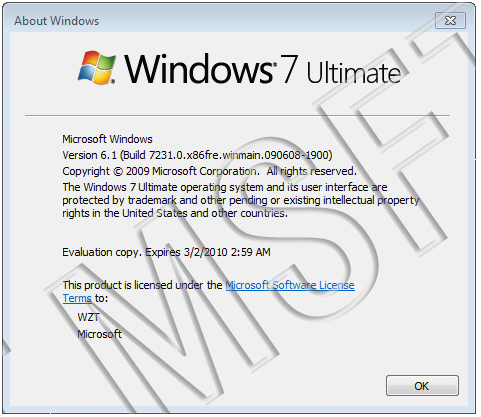
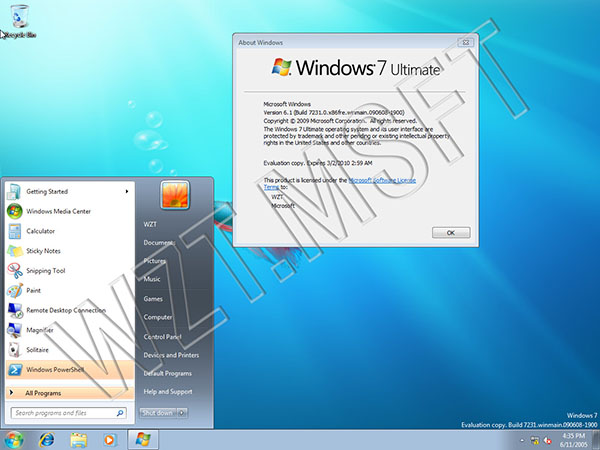
    Soon after the leak of the windows 7 latest build Windows 7 build 7229 x86 & x64 another newer build just popped out now. It is the Windows 7 build 7231 x86 (32-bit). Wzor.info is behind the leakage of Windows 7 build 7231 x86 (32-bit) in the form of VHD image. Windows 7 build 7231 x86 has the build string 7231.0.x86fre.winmain.090608-1900.


    Details of Windows 7 Build 7231 x86


    MICROSOFT.WINDOWS.7.BUILD.7231.WINMAIN.X86.VHD.ENGLISH-WZT

    FILE: 7231.0.x86fre.winmain.090608-1900.client_en-us.ultimate.vhd

    (the original VHD in packed RAR archive, size RAR file: 1,956,847,719 byte

    SHA1: E947CB5AAD1DB581162C1F44F97C9B0E49E70E0A)

    SIZE: 5,214,876,672 byte

    CRC: 5710D7DF

    MD5: E11D5A0BE7EC9379141A07F831DE87ED

    SHA1: D6315A1D8D89D30D7EA948AD93D572203D155193

    Soon we can expect a Windows 7 Build 7231 ISO image leakage.

    Screenshot of Windows 7 Build 7231 x86 Pre- RTM


    Windown 7 build 7231 x86 about window
    Windown 7 build 7231 x86 properties
    Windown 7 build 7231 x86 Desktop

    Download Windows 7 Build 7231 x86 (32-bit)


    See Wzor.info for more details to Download Windows 7 Build 7231 x86 (32-bit).

    It is better not to downloaded these Windows 7 leaked builds due to security reasons.

    Labels:

    Thursday, June 11, 2009

    How to Get Windows 7 like taskbar in Windows XP & Vista

    The feature rich taskbar in windows 7 has played a great role in speeding up our work. The task bar in windows 7 is called the Superbar. The windows 7's new taskbar feature was warmly welcomed by the windows users beacuse it is simply superb. Live Taskbar Thumnail Previews, Aero Peek feature, Jumplist feature, big icons without the text, all added to its quick popularity. Windows Xp and Windows Vista users will really long to taste this windows 7 superbar feature. Here is a good new for all the Vista and XP users here is a utility that will emulate the same windows 7 taskbar in Windows P and Windows Vista.

    Sbar Taskbar is a sleek utility that will emulate the windows 7 like takbar feature in Windows XP and Windows Vista. Now getting the windows 7 takbar in Xp and Vista is so easy.

    Screenshot of Sbar Taskbar Replacement - Windows 7 Taskbar in Windows XP & Vista


    How to Get Windows 7 like taskbar in Windows XP & Vista

    Why wait? Get the Windows 7 like taskbar for Windows XP and Windows Vista

    Download Sbar Taskbar Replacement now

    Labels:

    Monday, June 8, 2009

    Automatically Rotate Windows 7 Logon Screens - Enjoy Different Logon Screens at each Windows 7 Login

    Get Different Logon Screens at Each Windows 7 LoginHere comes a great utility for all windows 7 lovers. Windows 7 has the new support for changing the logon screens without the need of any external softwares. So if you need a change in logon screen you need to manually apply a new image to be displayed at the logon time. Forget about that.!

    Windows 7 Logon Screen Rotator is a nice utility that will help you to display upto 10 random logon screen images at logon. luke_smily_face from Neowin.com created this nice utility. You can choose your favorite 10 images and Windows 7 logon rotator displays them randomly during login.
    Enjoy Different Login Screens at each Windwos 7 Login

    After selecting your favorite images at logon jusr click on "Enable Settings and Exit". Then a windows will popup asking you which logon screen to be displayed during the first login. Enter the number corresponding to your favorite image and Press "OK".

    During each time from now on different logon screen's will be displayed with your favorite images.

    If you dont want this feature and need to remove it, then just run "Remove files and settings.exe", which comes along with Windows 7 Logon Screen Rotator pack.
    Your Default logon screen will be restored.

    Download Windows 7 Logon Screen Rotator

    Labels: , ,

    Friday, June 5, 2009

    Speed Up Windows 7 - Ultimate Guide To Make Windows 7 Blazing Fast!!!

    Here is the Guide to Speed Up Windows 7 - Ultimate Guide To Make Windows 7 Blazing Fast!!!
    Windows 7 is Engineered for speed. Special attention has been given by the Windows 7 team for making Windows 7 faster than the previous operating systems. Windows 7 is much faster than Windows Vista, but even then most of us don't get satisfied with it. There are many who still have their old PC. Installing Windows 7 on them wont be as soothing as they work with with XP and Even with latest hardware's installed some users still long for more performance. At least if we don't make it lightning fast we can optimize Windows 7 to the maximum possible extent and enjoy the maximum performance we could squeeze out from it. So for all the extra performance lovers, let me present you wit this Ultimate Guide To Speed Up Windows 7.

    Speed Up Windows 7 - The Ultimate Guide To  Make Windows 7 Blazing FastI guarantee you that after following this guide and implementing the recommendations on your PC, you will really get the performance gain.

    The bare Minimum Requirements You need To Run Windows 7

    1) 1GHz processor (32- or 64-bit)
    2) 1GB of main memory
    3) 16GB of available disk space
    4) Support for DX9 graphics with 128MB of memory (for the Aero interface)
    5) A DVD - R/W drive

    Even if you don't have the DX 9 graphics card there is no problem because our target is performance not the " Eyecandy " . Of course if you need the aero experience you need a powerful graphics card for sure.

    So lets startThe Ultimate Guide to Speed up Windows 7

    1. Speed Up the Windows 7 Boot Speed


    2. A simple tweak will help you to decrease the boot time of windows 7. You will be benified by this tweak only if you have a multiple core processor. These days most of the computers have a dual core or quad core or something better than that CPU's.

      • Press [Win] + R or take the RUN option from the start menu.

      • Now type msconfig in there and press Enter Key to open up the System Configuration Window. Click on the Boot tab in there.
        You will see a box called Time out. This is the time (in sec) which the system waits for the user to select the operating system to boot to.

      • If you use only a single operating system (don't dual boot) you can safely set the value to 0.

      • But if you have more than one operating system installed then set it to 3 or more (which ever is convenient).


      • Now after doing the above step click the " Advanced Options " button. The Boot Advanced Options Window will then pop up.

      • Tick the check box saying "Number of Processors". Now click on the drop down box and select the maximum number of processor cores (might be 2 or more).

      • Press " OK " and also tick the " No GUI Boot " option too.
      • Click " Apply "and then on " OK " and thats it.


    3. Disable the Aero Theme on Windows 7


    4. The aero user interface certainly adds some " Eyecandy " to Windows 7 but certainly is a resource hog especially when, what you expect from windows 7 is more performance juice. Aero user interface squeezes your graphics or video card to its maximum. So why cant we just avoid the Windows 7 aero? if we care more about speed and performance in Windows 7. So Disabling the Aero in Windows 7 certainly adds an extra speed boost to it.

      Speed Up Windows 7 by disabling the aero user interface
      • Right Click on your Desktop and select " Personalize " click the Window Color Tab.

      • Uncheck the Box saying " Enable Transparency " and then click on " Open classic appearance properties for more color options".

      • Then a window will open up. Apply a Standard or Basic theme from it. The Standard Windows 7 theme is more preferred.


      Disabling the aero theme alone in Windows 7 will really speed things up.

    5. Disabling the Unwanted Visual Effects in Windows 7 to Speed Up more


    6. Even though we have tuned off the aero effects in Windows 7 still there are many unwanted visual effects that can be safely disabled to speed up windows 7 even more.

      Speeding Up Windows 7 by removing unwanted visual effects
      • For this right click on " Computer" and select "Properties" from the right click menu.

      • Click on " Advanced System Settings " from the left pane to open up the " System Properties " window.

      • Select the "Advanced" tab from it. Then Under " Performance " click " Settings ". Choose " Custom: " Options From it.

      • Now untick all the options and select only the last four options (actually three only needed; you can untick the second option from the last four). See the screen shot if you have any doubt.

      • Now just logoff your system and turn logon.


      You will now notice the speed difference now.

    7. Disabling the Unwanted Services to Speed up Windows 7


    8. There are many services in windows 7 that we dont require for our daily use. There are some exceptional cases though. Services such as "print spooler" is only needed when we use a printer. If we use a printer only occasionally we can safely turn off that service in Windows 7 and turn it on only when we need to take a print.

      I have previously prepared a List of services in Windows 7 that can be safely set to manual / disabled.

      Disabling the unneeded services in Windows 7 can really speed up the system boot time.

    9. Disable the User account control (UAC) Feature in Windows 7


    10. The User account control (UAC) feature in Windows 7 is very annoying though it says it can protect your computer from harmful virus activity etc. But if you are a daily user of your computer this windows 7 feature will be a total nuisance to you.

      To Disable and Turnoff UAC in Windows 7

      Speed UP Windows 7 by disabling User Account Control(UAC)
      • From the Control Panel open the " User Accounts and Family Safety " > User Account.

      • Click the User Account Control settings link.

      • Now just Drag the Slider towards "Never Notify".

      • Click "OK" and Reboot your system.


      Disabling UAC is for advanced users only i dont recommend doing it if not.

    11. Disabling the Search Indexing Feature in Windows 7


    12. Most of the Windows 7 users do less searches in there system. The Search Indexing service in Windows 7 will index keeps track of the files so that they can be found quickly when asked at some other time. This feature is useful only if you perform frequent searches on your system.
      For occasional file searchers the Search Indexing service in Windows 7 is a total resource hog. It unwontedly eats up your system resources. What you need from windows 7 is maximum performance from it then i would certainly recommend you to disable this resource hogging Windows 7 Search Indexing Feature.

      To Disable the Search Indexing Feature in Windows 7

      Disable the Search Indexing Feature in Windows 7 to Speed up Windows 7
      • Right Click the "Computer" Icon in the desktop and select "Manage".

      • Click "Services and Applications" in the "Computer Management" window.

      • Click on "Services".

      • You can see a lot of services listed there. Look for "Windows Search" in that.

      • Right Click on "Windows Search" from the list and choose "Properties".

      • The "Windows Search Properties Window" will open up. From "Startup type" click on the drop down menu and choose "Disabled".

      • Click "Apply" then "OK" and thats it. The Windows 7 Serch Indexing Feature is now disabled.


      If you want to completely disable the search indexing feature in Windows 7 you can set the Search Indexing Service to Manual (See the above method about disabling unwanted services).

    13. SetUp the Windows 7 Ready Boost Service for an Extra Speed Boost


    14. The ready boost feature in Windows 7 will help you to use your flash drive or pendrive or USB drive as Ram there by improving the performance and speed of windows 7 greatly. You can certainly experience it when launching bulky applications such as Adobe Photoshop etc.

      Speed Up Windows 7 with Ready Boost
      • To configure the Ready Boost Feature in Windows 7 you need to have a High Speed Flash/USB or Pendrive with you which is ready boost compatible.

      • After plugging you pendrive, open "Computer" > Right-click the on USB Drive/Pendrive > select "Ready Boost" tab > tick the "Use this device" checkbox.

      • You can configure how much space on your USB drive/ Pendrive to be used as Ram.


    15. Turn off Unused Windows 7 Features


    16. There are many feature in windows 7 that we often dont use. Disabling these unused features in Windows 7 will really help in speeding things up.

      • Open up " Programs and Features " from Control Panel.

      • Click the " Turn Windows features on or off " from the left pane.

      • Now uncheck all the Feature that you don't use in Windows 7 and restart the system for the changes to take effect.


    17. Disable the Windows 7 Sidebar (Actually the Gadgets)


    18. Disabling the window 7 sidebar is defenitely help you to to gain a few seconds during start up time. There are many useful utilities such as the RocketDock etc. which are good application launchers.

      To Disable the Sidebar in Windows 7,
      • Right click on the sidebar and select " Properties ".

      • On the properties windows untick the check box showing " Start sidebar when Windows Starts "

      • From now on windows sidebar won't start when windows 7 start up.


    19. Disable the Aero Peek and Aero Snap features in Windows 7


    20. Aero Snap will help you to maximize, minimize and resize the windows just by dragging and dropping it into the screen corners.

      To disable Aero Snap Feature in Windows 7,
      • Open the Windows 7 " Control Panel " and double-click on " Ease of Access Center " icon.

      • Now click on the " Make it easier to focus on tasks " seen at the bottom in there

      • Now untick the check box saying " Prevent windows from being automatically arranged when moved to the edge of the screen " .


      That will now disable the Aero Snap in Windows 7.

      Now To Disable the Aero Peek feature in Windows 7

      The Aero Peek feature in Windows 7 helps you to peek through all open windows by hiding all other windows and showing only the outlines of all windows. Aero Peek is similar to the " Show Desktop " Feature in XP and Vista.

      If you have followed step 3 then Aero Peek will be automatically disabled. If not,
      • Right click on the Windows 7 taskbar and select " Properties ".

      • Now untick the " Use Aero Peek to preview the desktop " option from there.


      The aero peek feature will now be disabled in windows 7.

    21. Change the Power Plan To Maximum Performance


    22. The Power settings in Windows 7 is not automatically set for maximum performance. By default the power plan in Windows 7 is set for a balanced performance with energy consumption on hardware. So you may not get the optimal performance from windows 7 if this is the case. So we need to change the power plan to High Performance Mode.

      Setting the Power Plan in Windows 7 To High Performance Mode
      • Double click the " Power Options " in the Control panel.

      • Click the down arrow showing " Show Additional Plans " to see the " High Performance " power plan
      • .
      • Now just activate the " High Performance " plan and thats it.

      • You may go for the advanced settings for further tweaking if you want.


    23. Disable the Thumbnail Preview Feature to speed up File browsing in Windows 7


    24. The thumbnail preview feature in Windows 7 will show the small thumbnails of the contents of a folder instead of showing it's icon. But this feature really do take up some system resources. So by disabling the Thumbnail Preview feature in Windows 7 the file browsing in Windows 7 explorer can be speed up.

      Speed up widows 7 by disabling thumbnail previewsFor disabling thumbnails in Windows 7,
      • Double Click on " Computer " >click on the "Organize" drop-down menu and select the "Folder and Search options"

      • Under ‘Files and Folders’ section, go to the "View" tab and tick the check box showing "Always show icons, never thumbnails" checkbox.


    25. Most Essential Softwares To Speed Up Windows 7


    26. In order to maintain your Windows 7 Performance and keep it up in Top Shape there are some very essential software's that can help us to Speed Windows 7. I will list some of them here. You can download these utilities. But i remind you that you need to run these utilities at least once in a week. Only if you do it regularly your Windows 7 will be in top shape every day.


      You can read this post which i have prepared earlier about the Top 5 Tools To Speed Up Your PC.
      http://www.computingunleashed.com/2009/05/top-5-tools-to-speed-up-your-pc-to.html There you can know more about these software i mentioned now.

    27. Registry Tweaks to Speed Up Windows 7


    28. Here are some registry teaks that can be used to speed up windows 7 even more. I have complied only the safest tweaks that can be applied to your PC. Apart from speeding up windows 7 they will also add some functionalities in windows like adding Copy to / Move to in right click context menu to speed up your daily tasks.

      http://www.computingunleashed.com/2009/01/registrytweaks-for-speeding-up-windows.html

      If you have the complete version of Tune Up Utilities software with you then it is the best one to keep your Windows 7 in top shape.

    29. Turn OFF Windows 7 Password Protection To save a few More Seconds!!!


    30. If you have set a password for accessing your user account in windows 7, then you need to enter it each and every time you logon to windows. Logging into windows automatically without entering any password will save you a few seconds more. If you are the only person who use your computer then i would recommend to turn this off. If that is not the case you can skip this step.

      How to Automatically Logon to Windows 7 without entering any username or password

    31. Turn OFF Windows 7 Screen Saver and Wallpaper


    32. In order to display the wallpaper and screen saver the system needs some memory. So by disabling those two we can save a few Mega Bytes of memory.

      To Disable The Screen Saver and Wallpaper in Windows 7,
      • Right click on desktop and choose "Personalize".

      • Click the Screen Saver link " From the Screen Saver drop down menu, Set it to "None" and click "Apply" and then "OK".

      • Now click on "Desktop Background" link.

      • From the "Location" drop down menu select "Solid Colors" and pick one color and click "OK".


    33. Disable Unwanted Start Up Items and Speed Up Windows 7 Start Up


    34. This really matters when you have installed a lot of softwares on your PC. Many software such as AcdSee will run services such as device detector etc during the system start up. These are of no use actually for most windows users. So preventing such services from starting up during the start up of windows 7 can result in quicker start Ups. This will actually save some seconds during windows 7 start up.

      • Type " msconfig " in the "RUN" option from start menu press [Enter] to open up the System Configuration Utility.

      • Now navigate to the "StartUp" tab.

      • Untick the Entries which are not needed


    35. Disable Unwanted System Sounds in Windows 7


    36. In order to play the sounds you hear in windows 7, system resources are being utilized. So if you can disable these sound effects you can gain some speed and also free some system resources too.

      To disable the system sounds in Windows 7,
      disabling unwanted sounds in Windows 7 to Speed Up
      • Type mmsys.cpl in RUN From the Windows 7 Startmenu search box and press [Enter].

      • Navigate to the "Sounds" tab.

      • Now from under "Sound Scheme:" select "No Sounds" > Click "Apply" > "OK".

      • You can keep some of your favorite sounds turned on if you want, but sounds played during the Windows 7 start up, shutdown, Logon, logoff, start navigation etc should be set to none if you want some real speed boost.


    Thats it following all these steps will certainly boost the speed and performance of your windows 7 operating system.

    Do you know any more ways to Speed Up Windows 7? Comment them below. I will include them in the post.

    Labels: ,